

In this guide we will provide all of the information you need to get up and running using the Loqate Shopify Plus Integration. If you’re looking for the full details of what the Loqate Shopify Plus Integration does and what it looks like in practice, you can find that here:Documentation Index
Fetch the complete documentation index at: https://docs.loqate.com/llms.txt
Use this file to discover all available pages before exploring further.
About the Loqate Shopify Plus Integration
Setup Video
Prerequisites
Before you start installing and setting up the Loqate Shopify Plus Integration, you will need the following:- A live Shopify Plus account
- A live Loqate account (available at account.loqate.com)
- A new Loqate API key (see the API keys section below for more information on this)
API keys
You’ll need a new Loqate API key, dedicated to this service. Our Creating API Keys page explains how to do this. We recommend you create a generic API key, but any key will work. Note You use Address Capture, Address Verify and Email Validation from a single API key. For information about how to ensure your Loqate integration is as secure as possible, see our API Security page.Installation
There are a few quick steps to get the Loqate Shopify Plus Integration up and running:- Install and configure the Loqate app
- Enable Address Capture, Address Verify and Email Validation
- Recommended - include company name
Installing and configuring the Loqate app
First, install the Loqate app from the Shopify App Store (see the Shopify app installation instructions for more details). Once that is done:- You should automatically be taken to the Admin section for your new Loqate app
- If not, go to accounts.shopify.com, select the Your store option, then select the Loqate app on the left-hand side of the screen to open it
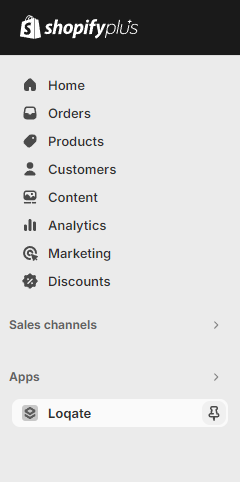
- Copy and paste your Loqate API key into the API Key field on this screen, then click the Save button:
Enabling Loqate services
- Enabling Address Capture
- Enabling Address Verify
- Enabling Email Validation
With the app installed, the Standard Address Capture is automatically available. We however
recommend adding the Custom Capture Search Input as it offers an improved experience when
searching sub-buiding addresses.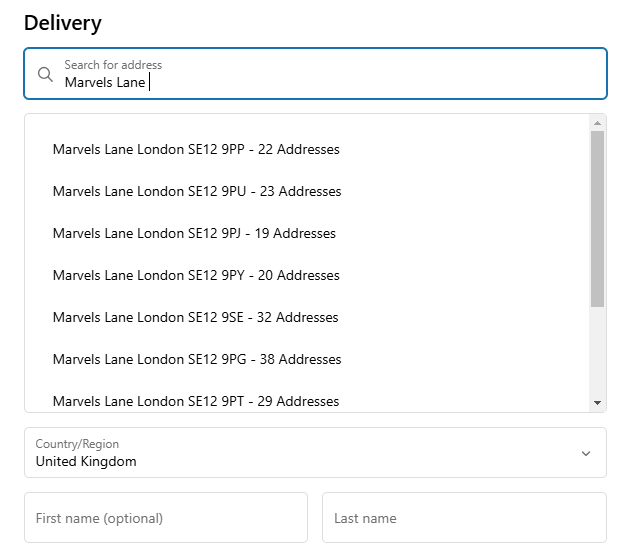
- In the Admin section of your Shopify Plus account, go to Settings > Checkout. From here you can either edit your existing checkout, or create a new draft of your checkout layout
- Next, select the Apps icon (the bottom icon) in the left-hand menu of the checkout editor, then search for ‘Loqate’
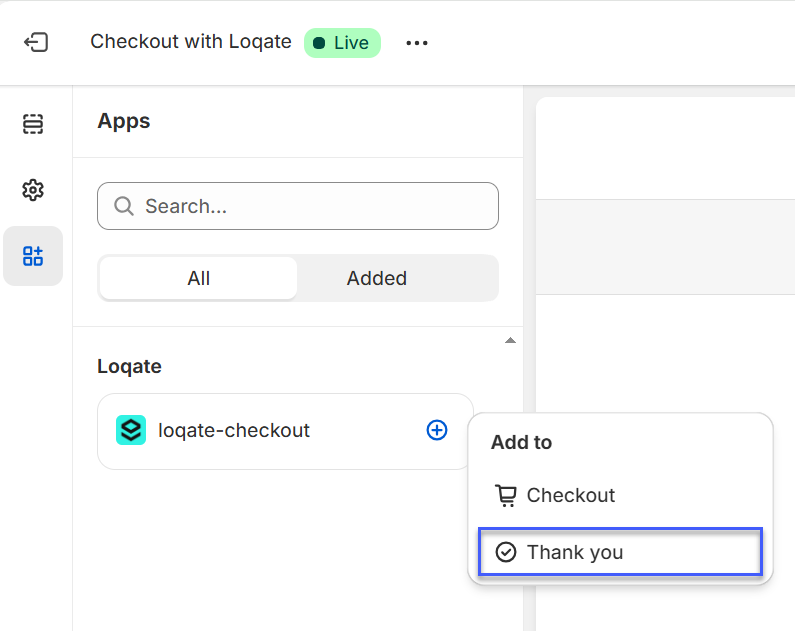
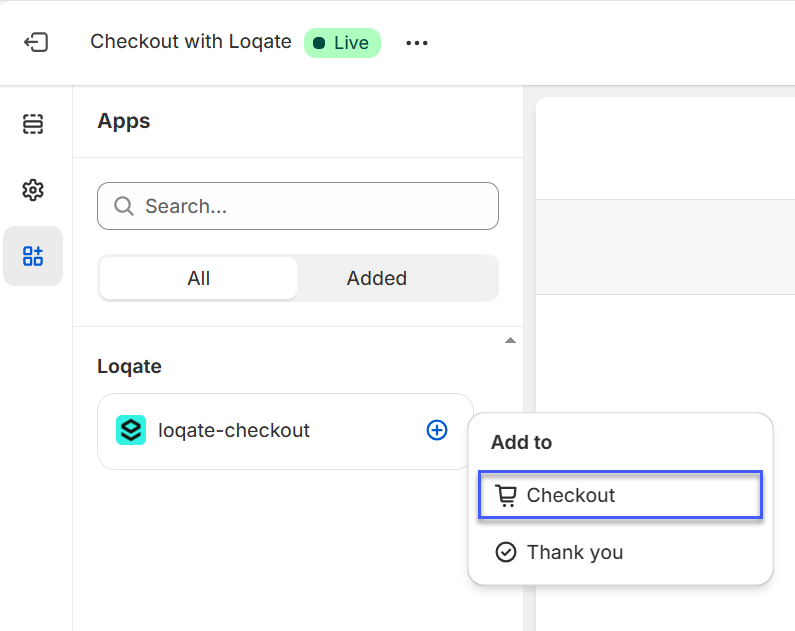
- Select the loqate-checkout app, then click the plus button and select Checkout from the drop-down list - this adds the app block to the Checkout page
- Next the Standard Address Capture search must be disabled. This will not turn off Capture entirely. Capture will now only run in the app block added using the instructions above. If the standard search is left enabled, Capture address searches will happen in two places on the checkout page(in the custom search input as well as the address text input)
- With that done, make sure to save the changes to your checkout, then exit the editor. If you created a new checkout draft, you can click the Publish button to make it live.
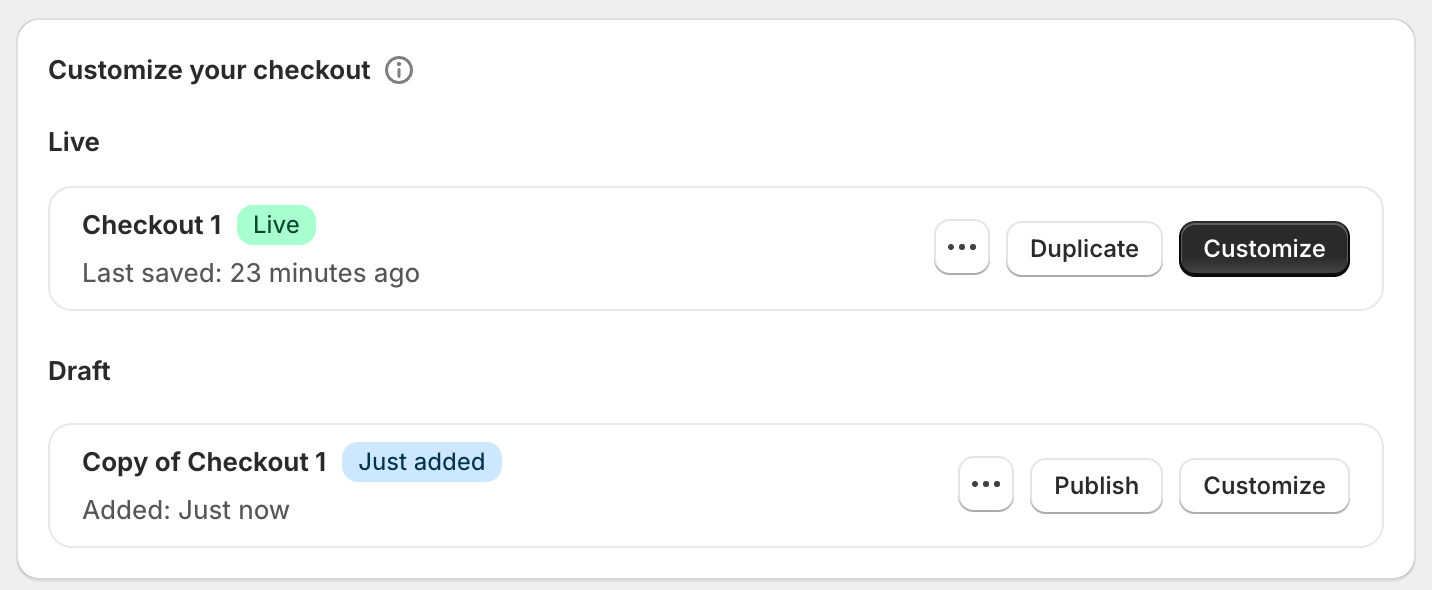
- In the Admin section of your Shopify Plus account, go to Settings > Checkout. From here you can either edit your existing checkout, or create a new draft of your checkout layout.
-
To edit your existing checkout click the Customize button, or to create a new draft checkout click the Duplicate button
followed by Customize on the new version.
-
Once you’re editing your checkout, go to the Settings menu (the cog icon on the left-hand side), scroll down to the
Address autocompletion section and select the Loqate option to set Loqate as your provider:
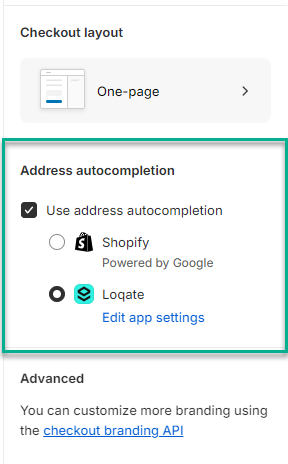
- Make sure you save the changes to your checkout, then exit the editor. If you created a new checkout draft, you can click the Publish button to make it live.
Recommended - Include company name
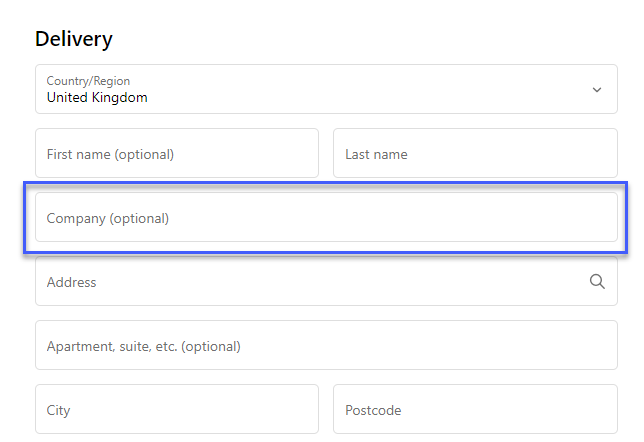
By default, Shopify is set to not include a Company name address field. As such, if an address includes a company name (for example if a customer orders a delivery to their place of work) it won’t be included in the address that’s populated in Shopify. We recommend setting Shopify to include Company name as an optional address field, so that it will be populated any time an address does include a company name. Here’s how to change that setting:- Go to the site Settings page for your Shopify store
- Select the Checkout option from the left-hand menu
- Scroll down to the Customer information section
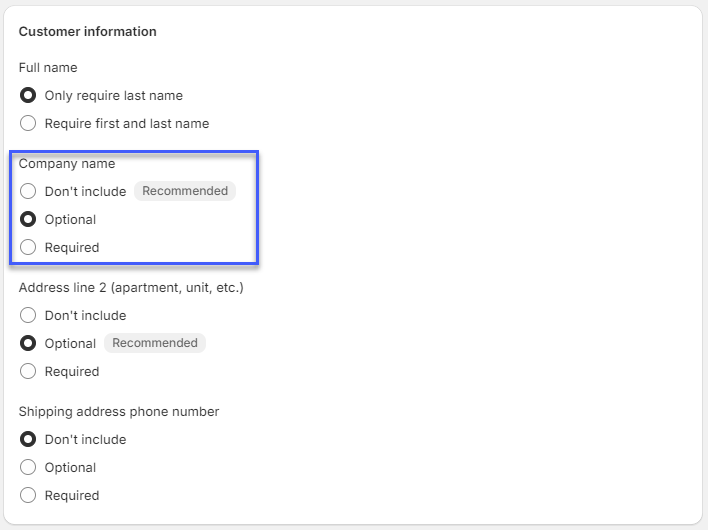
- Set Company name to Optional, then click the Save button
Optional - Use without Address Capture (not recommended)
We recommend always using Address Capture, as this helps reduce the chances of mistakes caused by manual address entry, ensuring addresses can be trusted as correct and giving the best customer experience. It is, however, possible to use just Address Verification or just Email Validation if you don’t want any kind of address autocompletion functionality. If you want to use Address Verification and/or Email Validation on their own, follow the full installation and setup process as above, then you can manually disable Address Capture. Here’s how to do that:- First, make sure that you’ve enabled at least one of Address Verification and/or Email Validation (see the Enabling Loqate services section earlier)
- Then, go to Settings > checkout and click the Customize option for your checkout
- Click on the Settings icon on the left-hand side, then scroll down to the Address autocompletion section
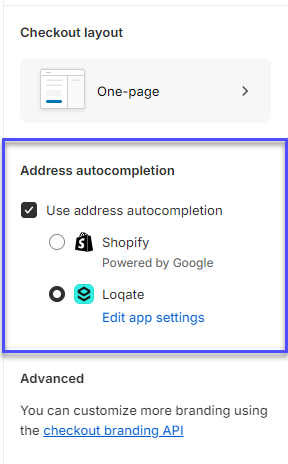
- Untick the Use address autocompletion option, then save the change to your Checkout configuration
Optional - Advanced Settings
The Advanced Settings page is located in the Admin section of your Loqate app, and includes the following optional settings.Force addresses to be returned in latin character sets where available
Force addresses to be returned in latin character sets where available
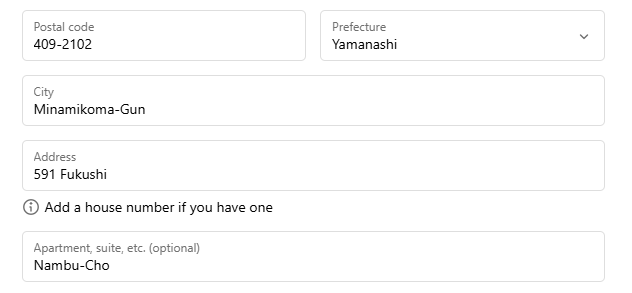
With this selected, Address Capture will always attempt to use any English results to set the delivery address, even with non-latin
results. Note that for this setting to work, the ‘Display a Custom Loqate Capture Search Input on the checkout page’ option
must be enabled.For example, here’s a Japanese address searched for using Kanji characters: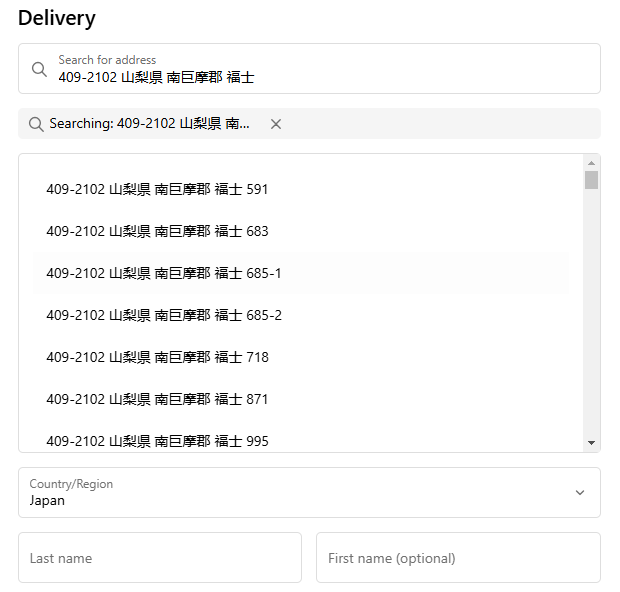
Use address capture to allow customers to update their address if the shipping address cannot be verified
Use address capture to allow customers to update their address if the shipping address cannot be verified
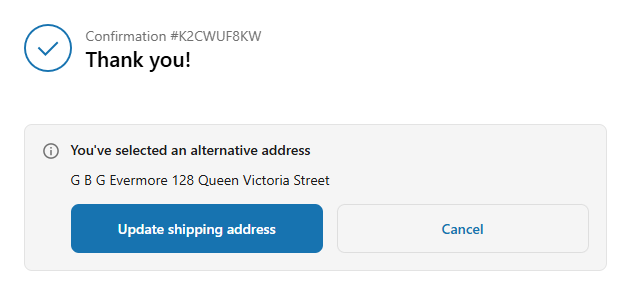
With this enabled, customers can manually amend their addresses post-checkout, if what they initially entered can’t be verified.
For example, if a customer hasn’t entered their building number or apartment number they can go back and add it in.Under these circumstances, after an order has been confirmed the customer will be presented with a list of possible addresses to
choose from: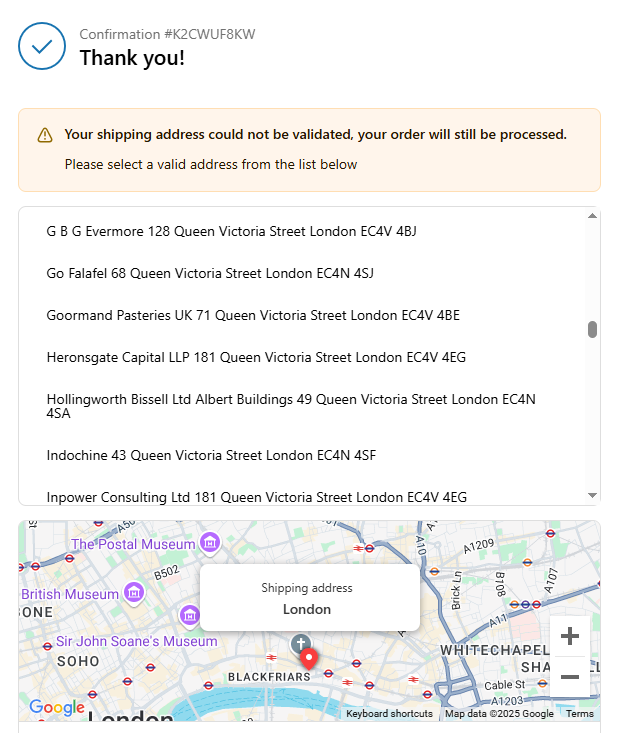
Use enhanced country validation on unverified addresses
Use enhanced country validation on unverified addresses
Sometimes it can be possible for a customer to enter an address with the wrong country, which as standard will be flagged as an
unverified address.Selecting this option enables Address Verify to be automatically called for a second time whenever an address is returned as unverified.
For the second call, Address Verify will run using enhanced country verification, providing another opportunity to verify the address
with the correct country.For this to function Address Verify must be enabled on the Thank you page. This functionality will incur additional charges for
additional verification.
Custom field mappings
Custom field mappings
Custom field mappings allow you to control how Loqate address data is mapped into Shopify’s checkout fields. By default, the app uses
built-in logic to populate fields like Address Line 1, Address Line 2, City, and so on. With custom field mappings, you can override
this behaviour — either globally or on a per-country basis — to handle address formats that don’t fit the default mapping.This is useful when you need to combine multiple address components into a single Shopify field, apply conditional logic based on
whether certain fields have values, or handle country-specific formatting requirements.To configure custom field mappings, click the Custom Field Mappings link on the Advanced Settings page. For full details on how
to set up and use this feature, see the dedicated guide:
Custom Field Mappings Guide
Learn how to configure custom field mappings with template syntax, country overrides, and examples.
Troubleshooting
I can't see some of the Admin options described in this guide
I can't see some of the Admin options described in this guide
The Loqate Shopify Integration requires a Shopify Plus account. If you don’t use Shopify Plus, you won’t see all of the necessary
options and won’t be able to use this integration.
The Capture autocomplete field is not showing on my checkout
The Capture autocomplete field is not showing on my checkout
Ensure that the API key is correct on the Admin page.
When selecting an address, the fields do not populate
When selecting an address, the fields do not populate
Ensure that your API key is correct on the Admin page, and that you have sufficient credit on your Loqate account.
How do I uninstall the Loqate app?
How do I uninstall the Loqate app?
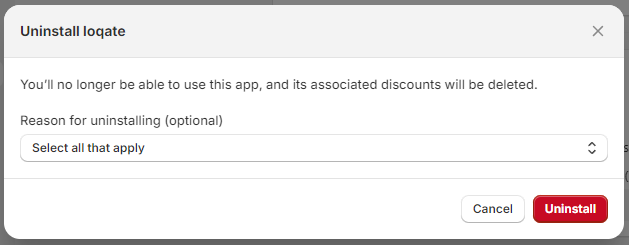
If you no longer want to use the Loqate Shopify Plus integration, you can uninstall it from your Shopify Plus store.Please note: if you uninstall the Loqate app and then want to start using it again at a later date, you will need to go through the
full installation process again.To uninstall the Loqate app, go to the Admin page of the app within your Shopify account and click on the three dots at the top-right of
the screen. You will see an option to uninstall there: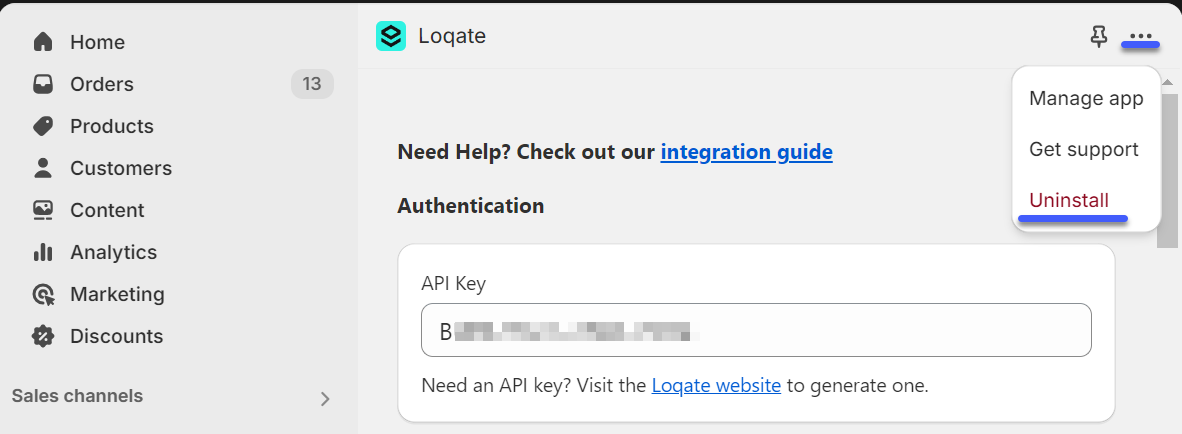
Further reading
If you haven’t already, check out our ‘About the Loqate Shopify Plus Integration’ article for examples of the Loqate Shopify Plus
Integration in use.