

The first step towards installation of data packs is to check the availability of Install Manager in the API installation folder. If the Install Manager is not available, the Install Manager installer should be used to first install the Install Manager. Then the data packs can be downloaded and installed using the Install Manager.Documentation Index
Fetch the complete documentation index at: https://docs.loqate.com/llms.txt
Use this file to discover all available pages before exploring further.
Recommended Installation Steps
- Install the Install Manager, if not already installed in the Loqate API Installation Folder (You will need the Install Manager Installer from Loqate, to install the Install Manager)
- Request a license key from Loqate Support at support@loqate.com or use local data packs if available
- Execute the Install Manager and use it to install the data packs as needed
Install Manager
Install Manager is a Java application that was introduced in 2013Q2.0 to handle the installation of the GKR. Install Manager can be run in graphical user interface (GUI) mode or in command line mode. Install Manager uses a web service running atlicensing.loqate.com to provide the information on compatible data packs for a given Local API version. Install Manager requires either a license key or license pack that can be obtained by contacting support@loqate.com.
Change to Version of Java Used by Install Manager
The Loqate Install Manager used to install or update Loqate LFS datafiles is provided with a bundled Java Runtime Environment (JRE) that it uses rather than relying on the version of Java on the target machine. From 2024Q4.1 release the bundled JRE will be changed, due to vulnerabilities in the version of JRE previously used by InstallManager. However, the more recent JRE bundled from 2024Q4.1 onwards has a dependency on a later version ofglibc; it will need glibc 2.14 or later to be on the machine.
Customers with machines using old operating systems may not have support for glibc 2.14, and the bundled Java JRE will therefore not be usable on their machine, causing an error, like below example:
- SUSE Linux Enterprise Server (SLES) 11 SP3
- RedHat 6.9
InstallManager.sh, a potential workaround is to use the version of Java runtime already installed on the machine, rather than the bundled JRE. This can be achieved by commenting out or removing the two lines highlighted below in InstallManager.sh before running it.

jre folder/directory.
If you do not have any JREs on your system, you are recommended to Install Java/JRE version 8 and above. Below is a list of links that contains downloadable Java/JDK, please choose the version that is compatible with your platform.
Reference download sites for Java (JDK/JRE):
Graphical User Interface Mode
Install Manager can be started in GUI mode by providing the command line option:mode=gui. GUI mode is the default mode on Windows platforms. On Windows platforms, Install Manager can be launched by double clicking on InstallManager.bat.
The first screen displays the version of the Local API currently installed, at the lower left corner.
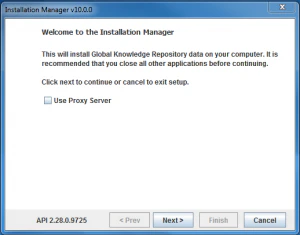
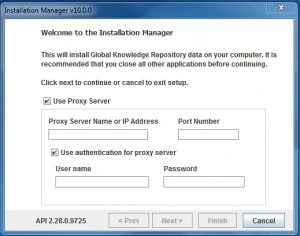
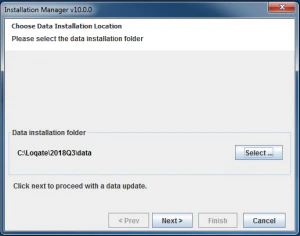
loqateLicense. If a license key is entered, Install Manager will communicate with licensing.loqate.com. If the license key is valid, the server will return the corresponding license pack to Install Manager and then Install Manager will write the license pack to the installation folder.
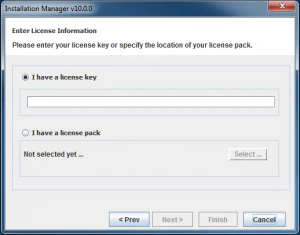
loqateLicense is selected, it will be changed to the new format license.lfs
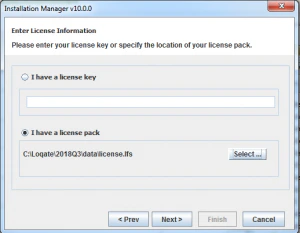
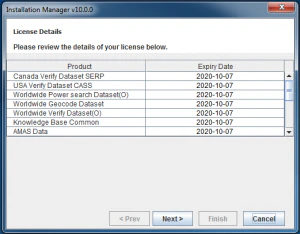
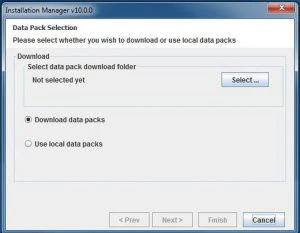
licensing.loqate.com and fetch details about the latest available licensed data packs that are compatible with the Local API version that is currently installed. The details of available data packs to install will be shown next. In the case a user selects an existing data folder for installation, it will show newer data packs available to download and install. The release date of the available data packs will also be displayed. The user can select the required data packs from this screen by checking the checkboxes next to each product.
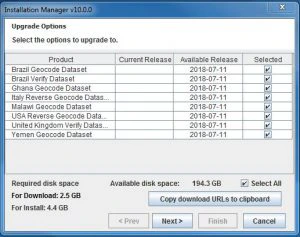
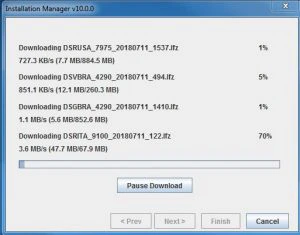
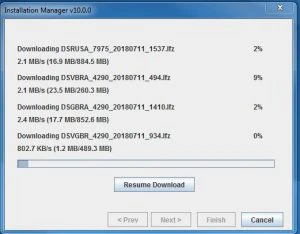
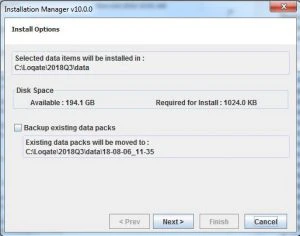
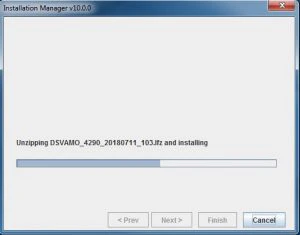
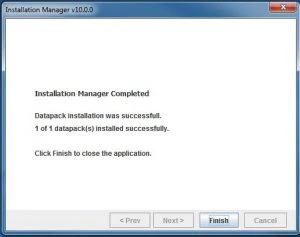
Command Line Interface Mode
Install Manager can be started in command line mode by providing the command line option:mode=commandline. Command line mode is the default in Linux and UNIX platforms. On Linux/Unix platforms, Install Manager can be launched by running the script InstallManager.sh.
The first screen displays the version of the Local API currently installed.
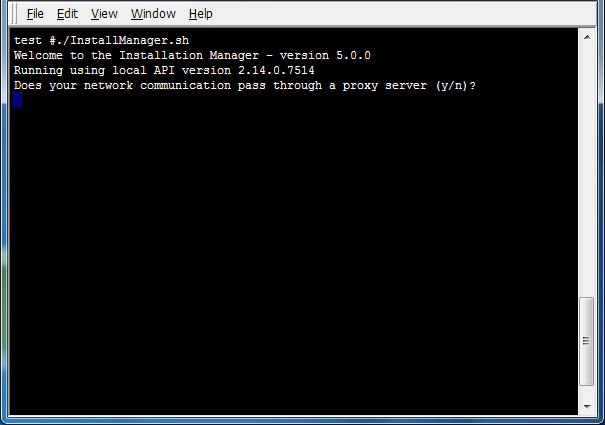
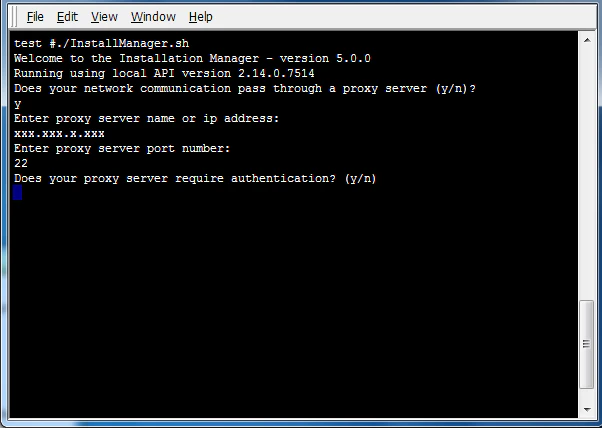
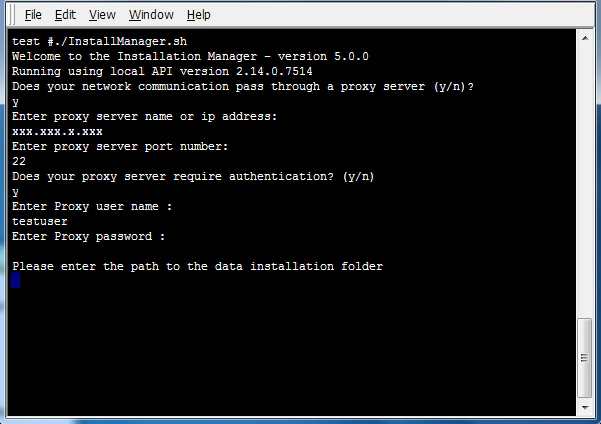
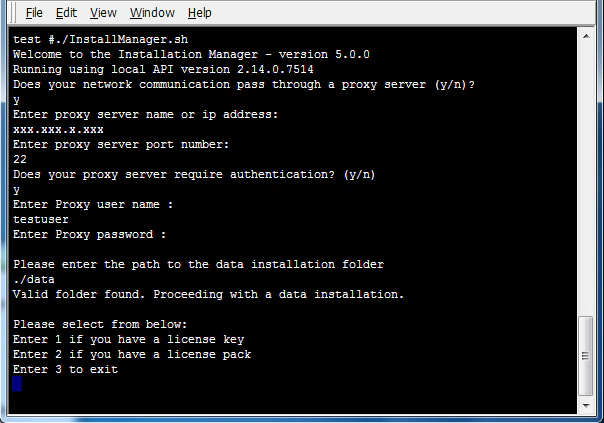
loqateLicense. From 2015Q1 release the license pack format is changed from loqateLicense to license.lfs. If a license key is entered, Install Manager will communicate with licensing.loqate.com. If the license key is valid, the server will return the corresponding license pack to Install Manager and then Install Manager will write the license pack to the installation folder.
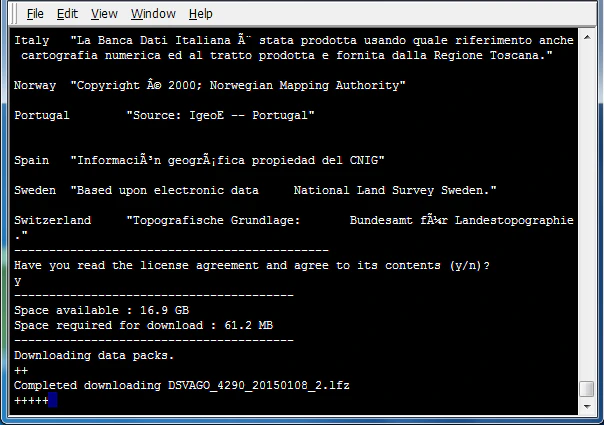
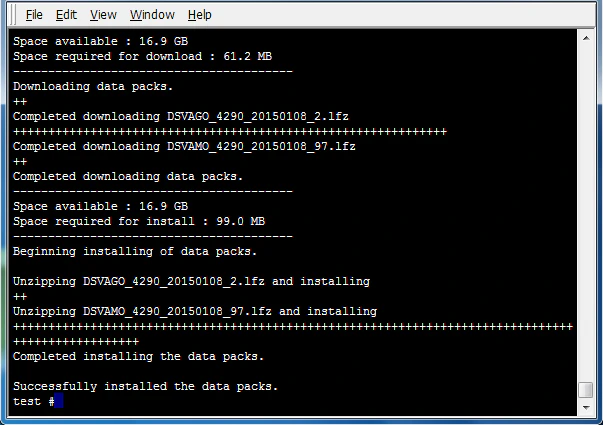
There are 3 options available for downloading and installing as shown below.
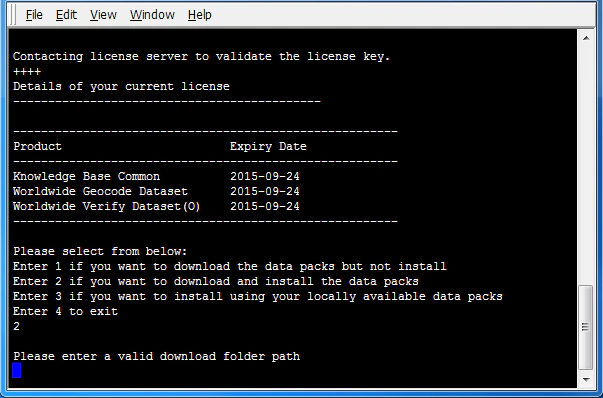
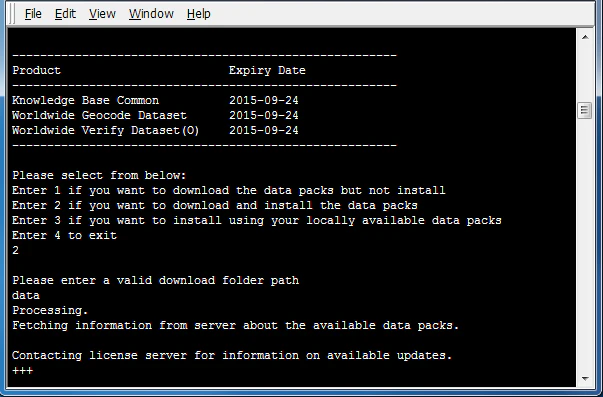
all to select all data packs. Alternatively, if only certain products are desired for installation, enter the numbers next to those products, ending the selection by entering done.
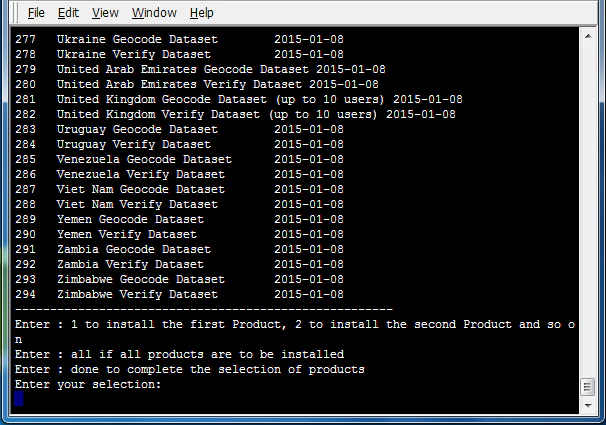
download.loqate.com and install them.
Installation Troubleshooting
If you receive the error message “license expired” but your license key is still valid, we have listed the below recommendations.Insufficient Permissions
Install Manager needs both read and write permissions to update the license pack. Make sure you have permission to create/overwritelicense.lfs, otherwise the license pack will not update.
Linux: Since the Linux install of license.lfs has default permissions of 644, only the owner of license.lfs has write permissions. If you are accessing license.lfs from a shared folder or someone else’s folder, you will need to change the permissions to 664 or 666 first.
Windows: If you are installing data anywhere inside Program Files, Program Files (x86), or Windows (for example C:\Program Files\Loqate\data), you will need to provide admin permissions, either by running InstallManager as administrator through Command Prompt, or installing outside of Program Files and copying the installed data into the desired location.
Older Version of Install Manager
If you are using an older version of the Install Manager from 2015, which had a bug, you will need to download the latest InstallManager from the Loqate FTP site. To retrieve the login info, please either ask your account manager or submit a ticket to support@loqate.com.Proxy/Firewall Access
Install Manager needs internet access and will connect to our licensing servers to validate the license key and to fetch the information about the latest compatible reference data for download. If there are any Proxy/Firewall settings in place that may block the access to our servers, please check that the following URLs are not blocked by your settings. If the following URLs are blocked, please update your firewall settings or use the proxy authentication specified during the Install Manager process (on the first screen). The following URLs are needed so that the Install Manager can connect to our server to verify the license key and get the reference datapacks:https://licensing.loqate.comport 443https://data.loqate.comport 443